

Overview
In this exercise, you will learn how to call a Banking OS (GC) connector. You will call a already deployed Template Connector called Health connector. The Banking OS Generic API called Health API is already deployed automatically to all Banking OS Connectivity installations and contains a simple endpoint getVersion that returns its version.Key learning outcomes
- How to obtain an API endpoint.
- How to obtain an API subscription key.
- How to execute a cURL request against Azure API Management (APIM) and verify the output.
Obtain the Connector API URL
To retrieve the connector URL from the APIM resource on the Azure portal the roledev-apim-ro
should be assigned in self-service in order to have access
to APIM pages.
Follow the path in the APIM portal:
APIs -> Health Api -> v1 -> getVersion -> Request URL field
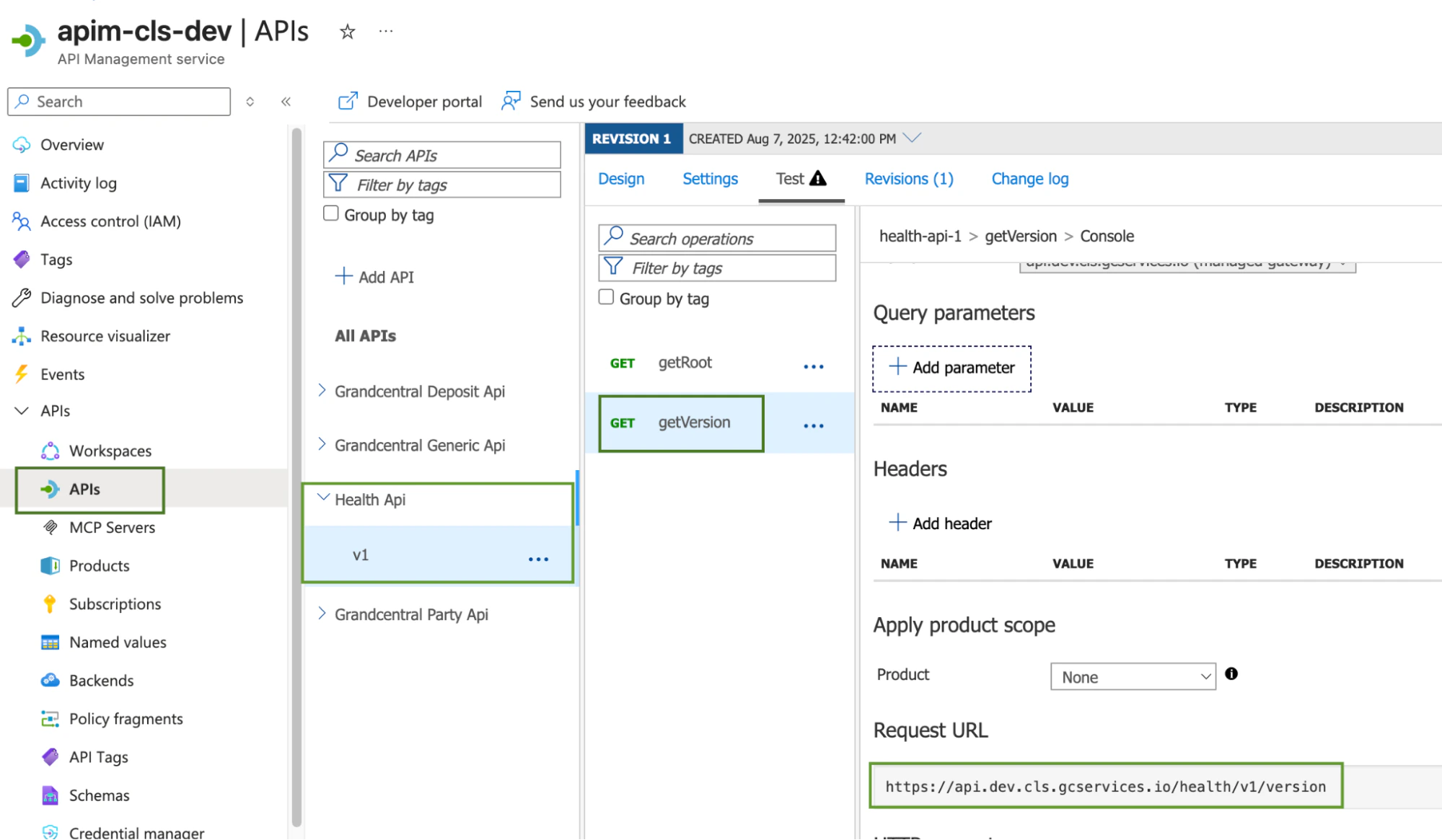
This is applicable for all connectors, each API deployed is available on this Azure resource.The API Request URL pattern is:
Obtain APIM Product Subscription Key
The APIM Product Subscription key can also be obtained from the Azure Portal under the Subscription tab. To obtain the Banking OS Generic API subscription follow the below steps highlighted in the image below. The primary key will be the value used in the connector call below.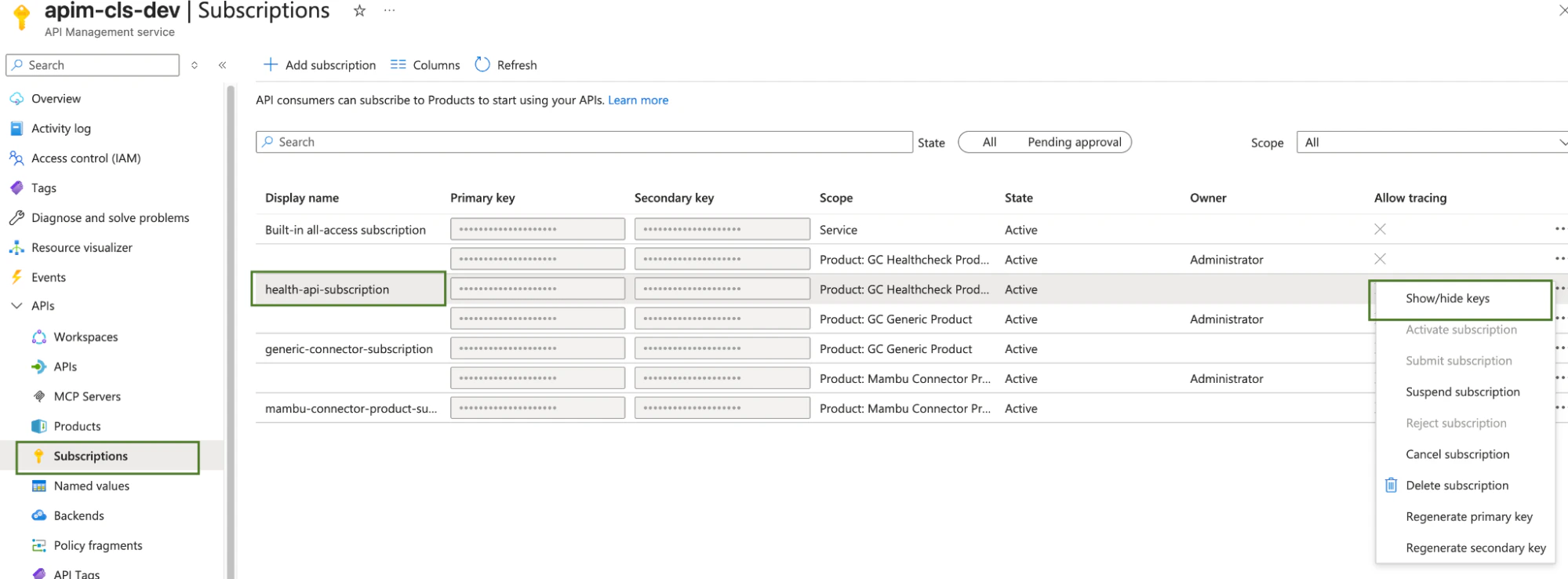
Calling the Connector
Now you have retrieved the connector URL and the subscription key from the above steps. It’s now time to call the connector by executing an HTTPGET request.
Ensure you are on the Backbase VPN and are routing the request through the Backbase proxy.
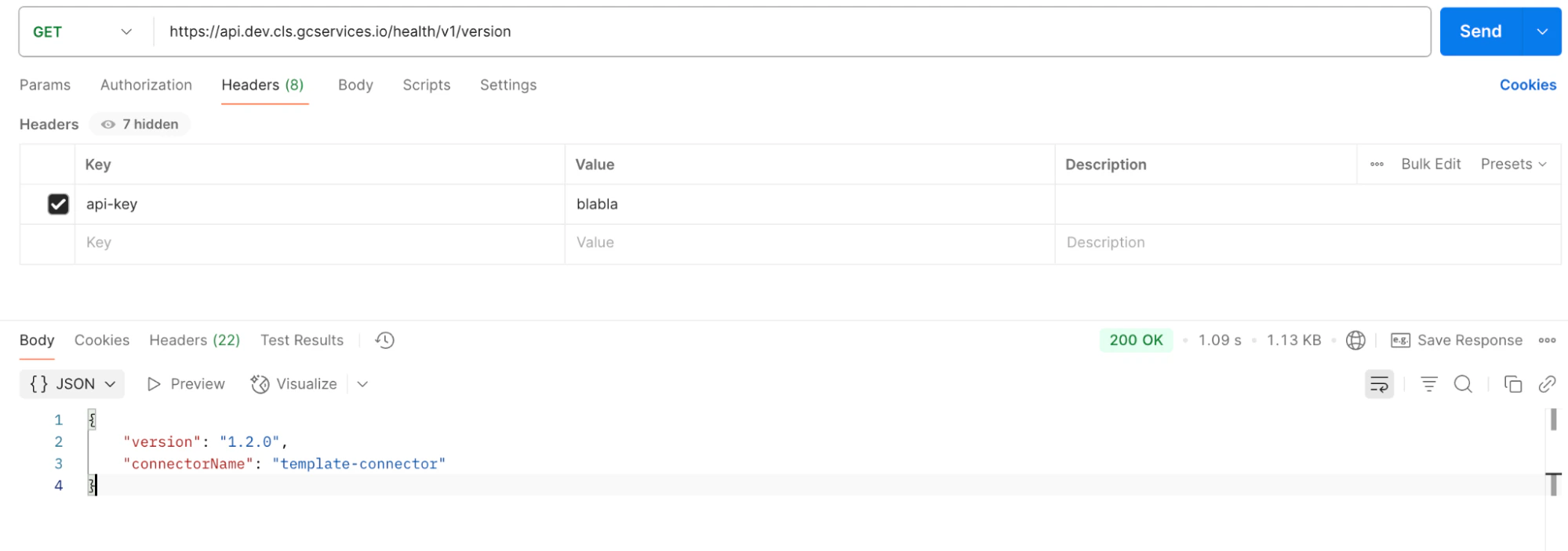
Api-Key request header for routing and authorization.
This header should contain the subscription key value.
Ensure the Api-Key header value matches the primary key value from the preceding step.